User Guide
Course Management System (CMS) is a desktop application designed for NUS course coordinators who need to efficiently manage large cohorts, tutor assignments, and student records. Optimized for speed and productivity, CMS leverages a Command Line Interface (CLI) to enable users to perform tasks quickly and accurately.
Quick start
- Ensure Java 17 is installed.
- Check with:
java --version
- Check with:
-
Download the latest
.jarfile from here. -
Create or choose a folder as your CMS home folder (e.g.
C:\Users\<you>\Documents\cmson Windows). -
Copy the downloaded jar into that folder.
-
Open a terminal,
cdinto that folder, and runjava -jar cms.jar. A GUI similar to the below should appear in a few seconds. Note how the app contains sample data.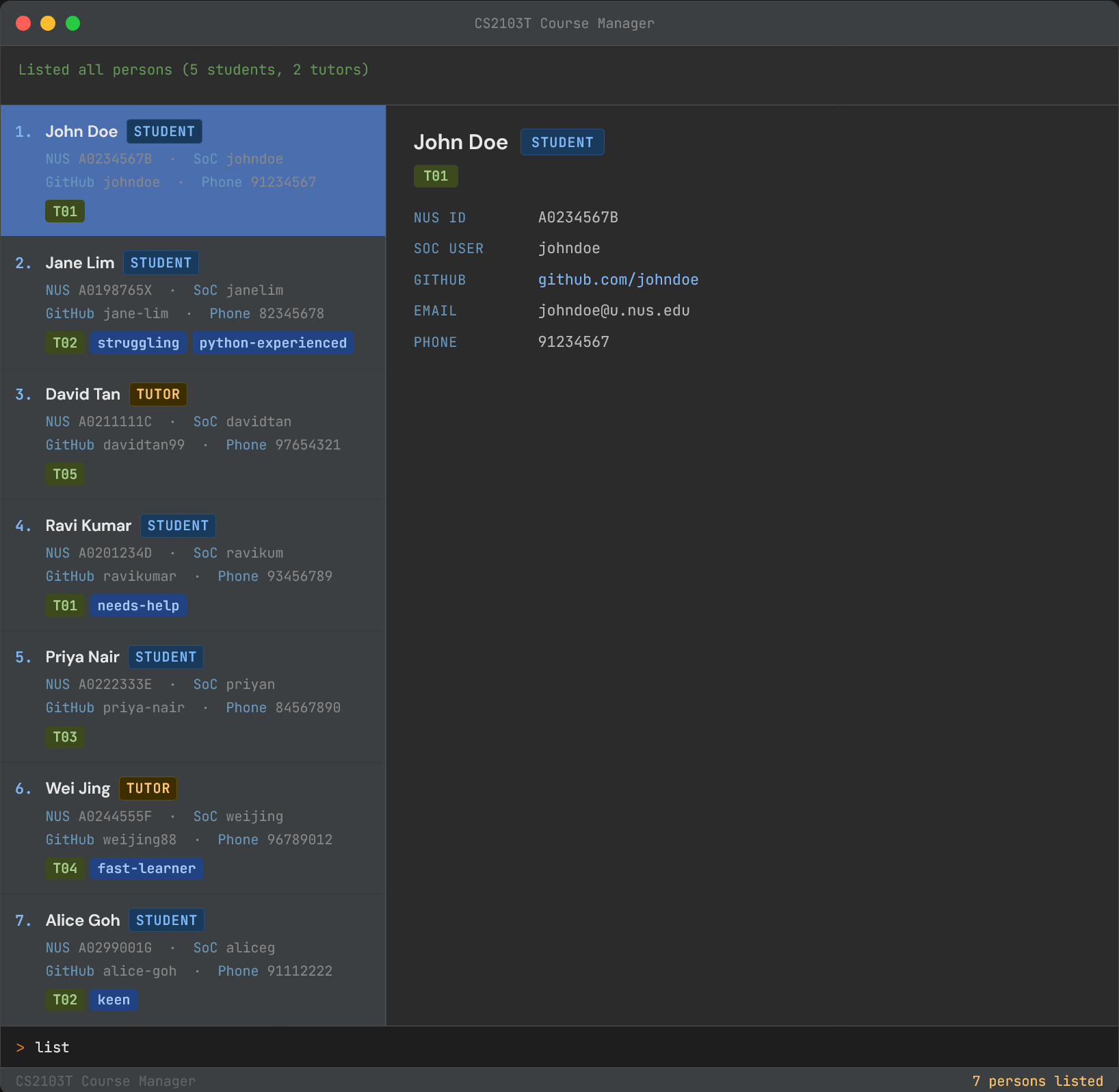
-
Type the command in the command box and press Enter to execute it. Typing
helpand pressing Enter opens the help window. Refer to Command summary for a quick list of available commands and formats. - CMS stores data under the home folder in
data/CMS.json.
 Tip:
To transfer your data to another computer, install CMS there and overwrite the empty
Tip:
To transfer your data to another computer, install CMS there and overwrite the empty data/CMS.json file it creates with your existing data/CMS.json.
Command summary
| Action | Format |
|---|---|
| Help | help |
| List | list |
| Add |
add n/NAME id/NUS_ID role/ROLE soc/SOC_USERNAME gh/GITHUB_USERNAME e/EMAIL p/PHONE t/TUTORIAL_GROUP [tag/TAG]...e.g. add n/John Doe id/A0234567B role/tutor soc/johndoe gh/johndoe e/johndoe@u.nus.edu p/91234567 t/01
|
| Edit |
edit INDEX [n/NAME] [id/NUS_ID] [role/ROLE] [soc/SOC_USERNAME] [gh/GITHUB_USERNAME] [e/EMAIL] [p/PHONE] [t/TUTORIAL_GROUP] [tag/TAG]...e.g. edit 2 p/98765432 e/johndoe@example.com
|
| Find |
find a/KEYWORD [MORE_KEYWORDS]...find n/KEYWORD [MORE_NAME_KEYWORDS]...find id/NUS_ID [MORE_NUS_IDS]...e.g. find n/jane n/eunice id/A0123456B
|
| Delete |
delete INDEXdelete INDEX [MORE_INDEXES]...delete id/NUS_IDe.g. delete 1 3 5
|
| Clear | clear |
| Exit | exit |
Features
 Notes about command format:
- A command has a command word plus fields.
- Command word:
add,edit,find, … - Prefixes identify each field, e.g.
n/,id/,e/. - Words in
UPPER_CASEare values to provide. - Items in square brackets are optional.
-
...means the field can be repeated. - Parameters can be in any order.
- For commands without parameters (
help,list,exit,clear), extra text is ignored. - e.g.
add n/John Doe id/A0234567B role/tutor soc/johndoe gh/johndoe e/johndoe@u.nus.edu p/91234567 t/01 tag/mentor
Viewing help : help
Shows a message with a hyperlink to this User Guide.
Format: help
Listing all student and tutor records : list
Shows all records currently stored in CMS.
Format: list
Adding a student / tutor : add
Adds a student or tutor record to CMS.
All required fields must be valid (See Fields and accepted formats).
Format: add n/NAME id/NUS_ID role/ROLE soc/SOC_USERNAME gh/GITHUB_USERNAME e/EMAIL p/PHONE t/TUTORIAL_GROUP [tag/TAG]...
Examples:
add n/David Tan id/A0211111C role/student soc/david1 gh/davidtan99 e/david@u.nus.edu p/97654321 t/05add n/John Doe id/A0234567B role/tutor soc/johndoe gh/johndoe e/johndoe@u.nus.edu p/91234567 t/01 tag/python-experienced
Note:
Add is rejected if unique fields conflict with an existing person (e.g. same NUS ID / SoC username / GitHub username / email).
Editing a student / tutor : edit
Edits an existing student or tutor record in CMS.
Format: edit INDEX [n/NAME] [id/NUS_ID] [role/ROLE] [soc/SOC_USERNAME] [gh/GITHUB_USERNAME] [e/EMAIL] [p/PHONE] [t/TUTORIAL_GROUP] [tag/TAG]...
- Edits the person at the specified
INDEX. -
INDEXmust be a positive integer (1, 2, 3, …). - At least one optional field must be provided.
- Existing values are replaced by the input values.
- When
tag/is used, existing tags are replaced (not cumulative). - You can clear all tags by using
tag/with no value. - Edited values must satisfy the same field rules as
add(see Fields and accepted formats).
Examples:
edit 1 p/91234567 e/johndoe@example.comedit 2 n/Betsy Crower tag/edit 3 id/A0654321B role/student soc/betsy3 gh/betsycrowe t/07
Finding students / tutors : find
Finds persons whose names or NUS IDs contain any of the given keywords.
Format:
find a/KEYWORD [MORE_KEYWORDS]...find n/KEYWORD [MORE_NAME_KEYWORDS]...find id/NUS_ID [MORE_NUS_IDS]...-
find n/KEYWORD [MORE_NAME_KEYWORDS]... id/NUS_ID [MORE_NUS_IDS]... - Prefix is required (
a/,n/,id/). - Search is case-insensitive for names. e.g.
n/hanswill matchHans. - Order of keywords does not matter for name search. e.g.
find n/Hans n/Bowill matchfind n/Bo n/Hans. - Full words are matched for names. e.g.
find n/Hanwill not matchHans. -
id/matching is case-insensitive. e.g.id/a0123456bmatchesA0123456B. - Mixed prefixes are allowed in one command, and results are returned by union (OR across prefixes).
Examples:
find a/janefind n/jane n/eunicefind n/jane eunicefind n/jane n/eunice id/A0123456B id/A1234567Cfind id/A0123456B A1234567Cfind id/A0123456B id/A1234567C
Deleting a student / tutor : delete
Deletes one or more persons by displayed index, or by NUS ID.
Format:
delete INDEXdelete INDEX [MORE_INDEXES]...-
delete id/NUS_ID - For index-based delete, each index refers to the displayed list and must be a positive integer.
Examples:
delete 2delete 1 3 5delete id/A0234567B
Purging all records : clear
Deletes all records from CMS.
Format: clear
 Caution:
This command deletes all records and is irreversible from within the app.
Caution:
This command deletes all records and is irreversible from within the app.
Exiting the program : exit
Exits CMS.
Format: exit
Saving data
CMS saves data automatically after commands that modify data.
Editing the data file
CMS data is stored in [CMS home folder]/data/CMS.json.
Caution:
Invalid edits can cause CMS to reset your data file on next launch. Back up CMS.json before editing manually.
Fields and accepted formats
Use this section as a quick checklist for add and edit.
- Letters, numbers, and spaces only.
- Cannot be blank.
- Case sensitivity: case-sensitive (stored as entered).
- Valid:
n/John Doe - Invalid:
n/John@Doe
- Must be
A+ 7 digits + uppercase letter (e.g.A0234567B). - Must be unique in CMS.
- Case sensitivity: case-sensitive (
Aand trailing letter must be uppercase). - Valid:
id/A0234567B - Invalid:
id/a0234567b
- Must be exactly
studentortutor. - Case sensitivity: case-sensitive (lowercase only).
- Valid:
role/student - Invalid:
role/Student
- Either a SoC-style username or a valid NUS ID format.
- SoC-style username rules:
- 5 to 8 characters.
- Lowercase letters, digits, and hyphens only.
- Cannot start or end with a hyphen.
- No spaces.
- Must be unique in CMS.
- Case sensitivity: case-sensitive.
- Valid:
soc/john1 - Invalid:
soc/-john
- 1-39 characters.
- Letters, digits, and hyphens only.
- Cannot start/end with
-. - Must be unique in CMS.
- Case sensitivity: case-sensitive.
- Valid:
gh/jane-lim123 - Invalid:
gh/-jane
- Must be a valid email format.
- Case sensitivity: case-sensitive.
- Valid:
e/johndoe@u.nus.edu - Invalid:
e/johndoe@u
- Digits only.
- At least 3 digits.
- Case sensitivity: not applicable (numeric only).
- Valid:
p/91234567 - Invalid:
p/+6591234567
- Must be
01to99. - Case sensitivity: not applicable (numeric only).
- Valid:
t/01 - Invalid:
t/100
- Optional, repeatable.
- Alphanumeric characters only.
- No spaces inside a tag.
- Cannot start or end with a hyphen.
- Repeated tags for the same person are kept only once.
- Case sensitivity: case-sensitive.
- Valid:
tag/python - Invalid:
tag/needs help
Known issues
-
When using multiple screens, if you move the app to a secondary screen and later switch to one screen, the GUI may open off-screen. Delete
preferences.jsonbefore starting again. - If the Help Window is minimized, triggering help again may keep it minimized, and requires you to manually restore it.
FAQ
Q: How do I transfer my data to another computer?
A: Install CMS on the other computer, launch once, then replace the new data/CMS.json with your old one.
Q: Where are my preferences saved?
A: Preferences are saved in preferences.json in your CMS working directory.
Q: Can I undo delete or clear?
A: No. There is currently no undo feature, so keep backups of data/CMS.json if needed.
Q: Why is my find command not returning results?
A: Check your prefixes and input format (a/, n/, id/), and verify that full-word matching rules are met for name searches.